DropNow
Android to Mac file transfer
Plug in your phone. Browse both sides. Move files without the cloud.
Android Device
Internal Storage › Movies
- DCIM156 items
- Download48 items
- WhatsApp89 items
- vacation_clip.mp4125 MB
- notes.txt2.4 KB
Mac
~/android
- DCIM_Backup156 items
- WhatsApp Media89 items
- old_photos34 items
- readme.txt1.2 KB
Features
Click a feature to see it in the app.
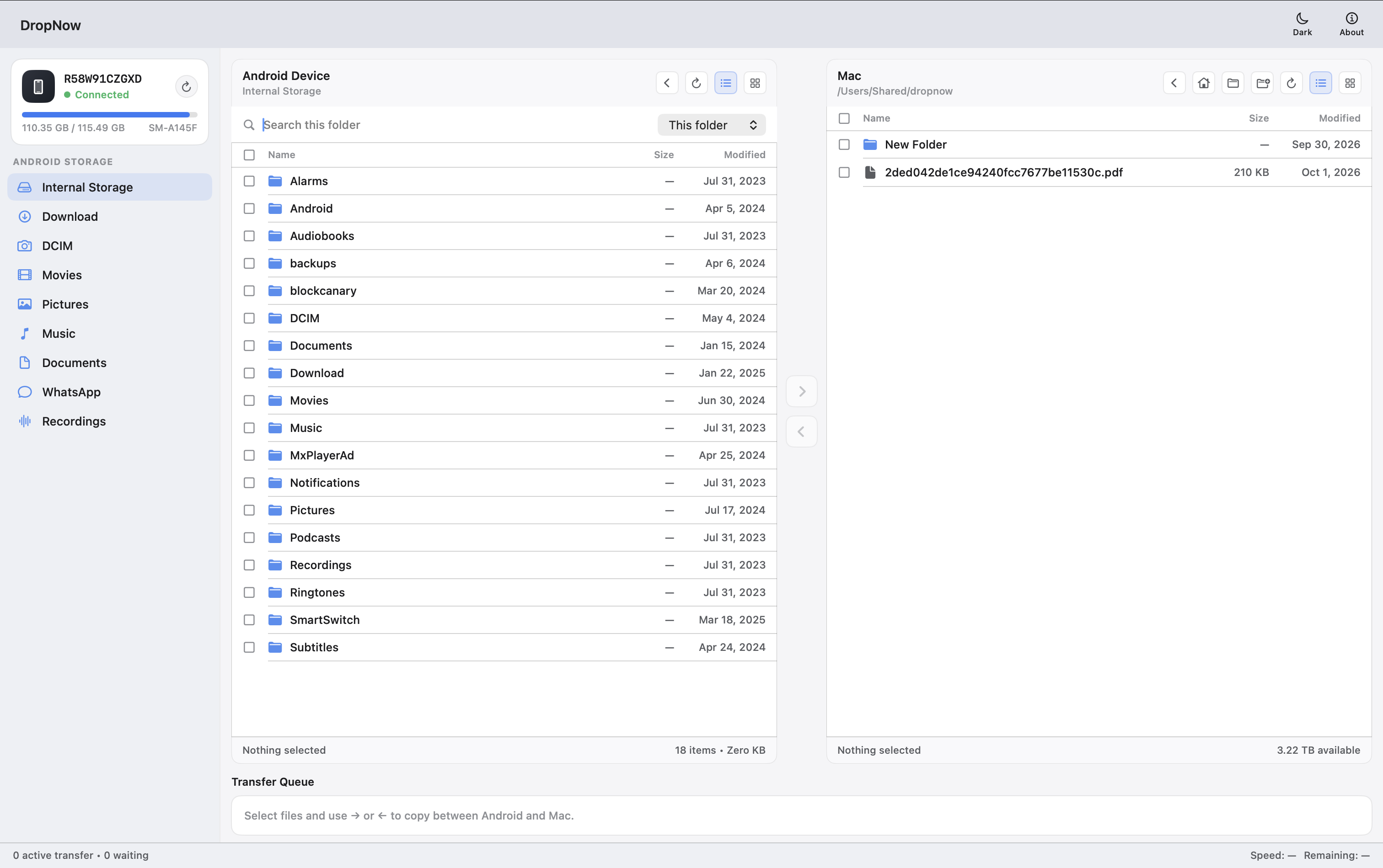
Install. Connect. Transfer.
- 01
Download & allow
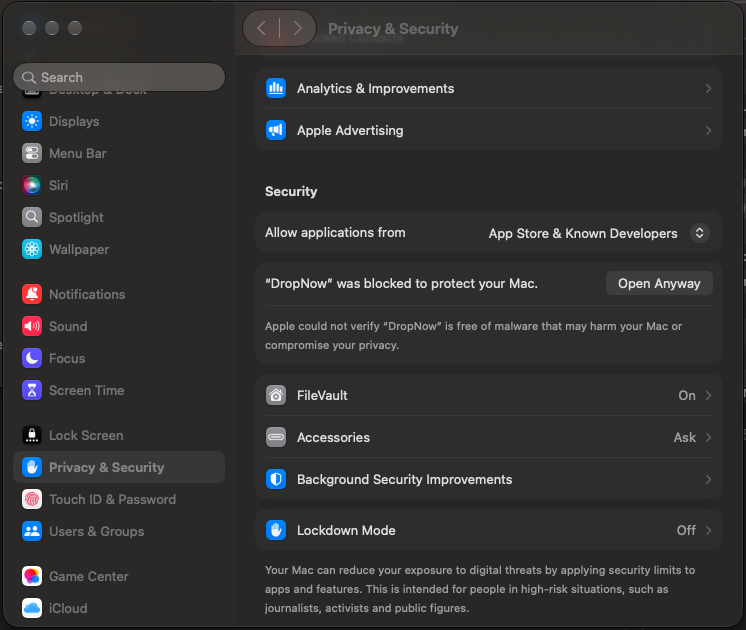
Download DropNow, open the DMG, and drag it to Applications. On first launch macOS may block it — use Open Anyway in Privacy & Security (see FAQ).
- 02
Plug in
Open Settings → About phone and tap Build number seven times to unlock Developer options. Then enable USB debugging and connect with USB—DropNow detects the device automatically.
- 03
Browse & transfer
Browse Android and Mac side by side. Select photos, videos, or folders and move either way—watch progress in the queue.
FAQ
Quick answers for first launch and setup.
macOS says “Apple could not verify DropNow”
That’s Gatekeeper — DropNow is distributed outside the Mac App Store. After you try to open it once, allow it here:
- Open System Settings → Privacy & Security
- Scroll to Security
- Find “DropNow” was blocked to protect your Mac and click Open Anyway
- Confirm again if macOS asks
Prefer a walkthrough? Watch this short video.
Your phone and Mac, finally in sync
Download DropNow for macOS and start transferring in minutes.
Download for Mac